
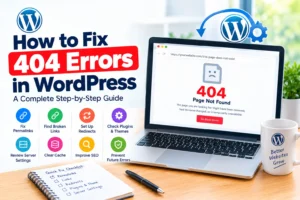
Have you ever clicked a link on your WordPress website only to see a message saying “404 Page Not Found”? This error can be frustrating for website owners and visitors. It can prevent people from accessing important pages, interrupt the browsing experience, and make your website appear poorly maintained.
The good news is that most WordPress 404 errors can be fixed without rebuilding your website or hiring a developer. In many cases, the problem is caused by incorrect permalink settings, deleted pages, broken links, or a small configuration issue.
In this guide, you will learn how to fix 404 errors in WordPress, understand why they happen, and discover how to prevent them from affecting your website in the future. Whether you run a personal blog, a business website, or an online store, these practical steps will help you troubleshoot the problem confidently.
What Is a 404 Error in WordPress?
A 404 error is an HTTP status code indicating that a requested page or resource could not be found at the URL provided.
For example, imagine your WordPress website contains an article at:
If someone visits that URL after the article has been deleted or its address has changed, they may see a 404 error.
A visitor might encounter messages such as:
- 404 Not Found
- Page Not Found
- The requested URL was not found on this server
- Sorry, this page does not exist
The exact wording depends on your WordPress theme, hosting server, and website configuration.
A 404 error is not automatically a sign that your entire website is broken. It may affect just one page, a group of pages, or, in some cases, nearly every page except the homepage.
The important thing is to identify the cause before making changes.
Why Do 404 Errors Occur in WordPress?
Several issues can cause WordPress 404 errors. Understanding the cause makes it easier to choose the right solution. Common reasons include:
- Incorrect permalink settings.
- Deleted or renamed pages and posts.
- Broken internal or external links.
- Incorrect redirects.
- Website migration or domain changes.
- Plugin or theme conflicts.
- Incorrect server configuration.
- Missing files or unavailable resources.
For example, if every page on your website returns a 404 error except the homepage, your permalink or server rewrite configuration may be responsible. If only one article returns a 404 error, the page may have been deleted, moved, or linked incorrectly.
Now, let’s examine how to fix these problems.
1. Fix WordPress 404 Errors by Refreshing Permalink Settings
One of the easiest ways to fix a WordPress 404 error is to refresh your permalink settings.
Permalinks determine how the URLs of your WordPress pages and posts are structured. For example, a post might use a URL containing its publication date or a shorter address based on its title.
Sometimes, WordPress rewrite rules become outdated or fail to work correctly after a website update, migration, or configuration change.
Refreshing the permalink settings can rebuild these rules and resolve the problem.
Step-by-step instructions
Step 1: Log in to your WordPress dashboard.
Step 2: Navigate to Settings and select Permalinks.
Step 3: Review your current permalink structure. You do not need to change it if it is already correct.
Step 4: Scroll to the bottom of the page and click Save Changes.
Step 5: Visit the page that previously returned a 404 error to see whether it now works.
WordPress may refresh its rewrite rules when you save the permalink settings, even if you do not make any changes.
Important: If your website uses a custom permalink structure, do not change it unnecessarily. Changing your URL structure can affect existing links and search visibility.
If the error remains, move to the next solution.
2. Check Whether the Page or Post Still Exists
Sometimes, the simplest explanation is the correct one: the page you are trying to access no longer exists at that address.
You may have accidentally deleted a post, changed its title, edited its slug, or moved it to another category.
A slug is the part of a URL that usually identifies a particular post or page.
For example:
The slug in this example is fix-wordpress-errors.
If you change it to wordpress-error-fixes, the original URL may stop working unless an appropriate redirect is in place.
How to fix it
Open your WordPress dashboard and navigate to Posts or Pages.
Search for the missing content and check whether it still exists. If you recently deleted it, inspect the Trash section to see whether it can be restored.
If the page exists but has a different URL, decide whether the new address should remain permanent.
When the URL has changed permanently, create a redirect from the old address to the new one if the destination is relevant.
If the content was deleted intentionally and has no suitable replacement, a 404 response may be appropriate.
Do not recreate every missing page just to eliminate 404 errors. The correct solution depends on whether the content should still exist.
3. Check for Broken Internal Links
Internal links connect one page on your website to another.
For example, a blog post about WordPress security might link to another article about website backups. If the backup article is deleted or its URL changes, the original link may lead visitors to a 404 page.
Broken internal links create unnecessary frustration and can make your website more difficult to navigate.
How to fix broken internal links
Start by identifying the pages that return 404 errors.
You can review your website manually, use a reputable broken-link checking tool, or examine relevant reports in Google Search Console.
Once you identify a broken link, open the WordPress post or page containing it.
Then choose the appropriate solution:
- Update the link to point to the correct page.
- Restore the missing content if it should still exist.
- Redirect the old URL to a relevant replacement.
- Remove the link if no suitable destination exists.
For example, if an article links to /wordpress-backup-guide/ but the correct address is now /wordpress-backups/, update the original link.
Fixing the source link is often better than relying on a redirect for a link you control.
4. Create Redirects for Changed URLs
A redirect automatically sends visitors from one URL to another.
Redirects are particularly useful when you change a page address, reorganize website content, move to a new domain, or replace an outdated article with an updated version.
A 301 redirect generally indicates that a page has moved permanently.
For example, you might redirect:
to:
This allows visitors using the old link to reach the new page.
How to create a redirect in WordPress
You can use a reputable WordPress redirect plugin or configure redirects through your hosting platform or server.
With a redirect plugin, the general process is:
- Install and activate a suitable redirect plugin.
- Open its redirect management screen.
- Enter the old URL as the source address.
- Enter the new URL as the destination.
- Select a permanent redirect when the move is permanent.
- Save the rule and test the old URL in your browser.
The exact steps depend on the plugin you use.
Only redirect a missing page to a destination that genuinely serves a similar purpose. Sending every 404 URL to your homepage is usually a poor solution because it can confuse visitors and create misleading redirects.
If a page has no relevant replacement, keeping a proper 404 response may be the better choice.
5. Fix 404 Errors After Moving Your WordPress Website
Website migration is another common reason for WordPress 404 errors.
You might experience these problems after moving from one hosting provider to another, changing your domain name, switching from HTTP to HTTPS, or transferring your website from a development environment to a live server.
The homepage may load correctly while individual posts and pages return 404 errors.
This can happen when URL settings, redirects, or server rewrite rules have not been configured correctly.
How to troubleshoot migration-related errors
First, check your WordPress Address and Site Address under Settings and General. Make sure they match your intended website configuration.
Be careful when editing these fields because incorrect values can make your dashboard inaccessible.
Next, save your permalink settings to refresh rewrite rules.
If the website uses a new domain, check that important old URLs redirect to their correct destinations.
Also review your hosting configuration and confirm that your website’s files and database were transferred successfully.
If you use a migration plugin, review its documentation and any warnings it reported during the transfer.
For complex migrations, especially those involving custom server rules or a large number of URLs, contact your hosting provider or developer.
6. Check for Plugin or Theme Conflicts
WordPress plugins and themes extend your website’s functionality, but conflicting configurations can sometimes interfere with page routing and redirects.
For example, a redirect plugin may conflict with another plugin that manages URL rules. A custom theme may also contain code that changes how certain requests are handled.
If the 404 errors began immediately after installing a plugin, updating your theme, or changing a setting, a conflict may be responsible.
How to identify a conflict
Before troubleshooting, create a backup of your website, especially if it is a live business site.
Then review recent changes.
If you suspect a plugin, temporarily deactivate the suspected plugin and test the affected URL again. If necessary, test plugins one at a time, following a controlled process.
Avoid deactivating critical plugins on a live website without understanding the consequences.
If you suspect your theme, test with a default WordPress theme in a staging environment where possible.
If the problem disappears after a specific change, investigate that component’s settings, compatibility, or documentation before deciding what to do next.
For websites that depend on membership, payments, caching, or security plugins, a staging environment is generally safer than experimenting directly on the live site.
7. Check Your Server Configuration
If refreshing permalinks does not solve the problem, the issue may involve your web server.
WordPress commonly relies on rewrite rules to display friendly URLs. These rules tell the server how to handle requests for posts and pages.
On Apache servers, the rules are often managed through an .htaccess file. On Nginx servers, similar behavior is typically configured in the server configuration.
If the required rules are missing, incorrect, or ignored by the server, WordPress pages may return 404 errors even when the content exists.
How to fix server-related 404 errors
First, determine which server your hosting provider uses.
If your website runs on Apache, check whether the .htaccess file exists in the correct directory and whether the server permits the required rewrite configuration.
If your website uses Nginx, ask your hosting provider to check the WordPress rewrite rules in the server configuration.
Do not copy random server rules from the internet into your production website without understanding them. Incorrect changes can break your website or interfere with its security.
If you are not comfortable editing server files, contact your hosting provider and explain that WordPress pages are returning 404 errors while the homepage works.
8. Check Whether Your Website Has Incorrect Redirects
Redirects can solve 404 errors, but incorrect redirect rules can also create new problems.
For example, an old URL might redirect to another missing URL. A redirect chain might send visitors through several addresses before reaching the final page. Two rules might even send the same URL to conflicting destinations.
These issues can make pages difficult to access and complicate troubleshooting.
How to fix incorrect redirects
Review the redirects configured in your WordPress plugins, hosting dashboard, content delivery network, and server configuration.
Test the affected URL and confirm that it reaches the intended destination.
Check that:
- The destination page exists.
- The redirect points to the correct URL.
- Permanent redirects are used for genuinely permanent changes.
- Unnecessary redirect chains are removed.
- Redirect loops are not present.
If multiple systems manage redirects, keep a record of the rules and remove duplicates carefully.
After making changes, clear any relevant caching layers and test the URL again.
9. Clear Your WordPress and Browser Cache
Caching systems store copies of website content so pages can load faster. WordPress caching plugins, hosting providers, content delivery networks, and web browsers may all cache different elements.
Occasionally, cached content or outdated routing information can make it appear that a problem remains after you have fixed it.
Caching is not the cause of every 404 error, but it is worth checking after changing permalink settings, redirects, or website configuration.
How to clear the cache
If you use a WordPress caching plugin, open its settings and clear the relevant cache.
If your hosting provider offers server-level caching, use the hosting dashboard or ask the provider to clear it.
If you use a content delivery network, purge the relevant cached resources when appropriate.
Finally, open the affected URL in a private browsing window or another browser to check whether the problem persists.
Remember that clearing the browser cache alone will not repair a broken permalink structure or an incorrect server configuration. Treat caching as one troubleshooting step, not a universal fix.
10. How to Fix WordPress 404 Errors for SEO
A 404 error is not automatically harmful to your website’s SEO. Search engines expect some pages to disappear over time.
The problem arises when valuable pages, important internal links, or URLs with useful external links stop working without an appropriate solution.
For example, if a popular article has moved to a new URL, visitors and search engines may continue requesting the old address.
SEO best practices for fixing 404 errors
- Identify important missing pages: Use Google Search Console and website analytics to identify URLs that receive search impressions, traffic, or referrals.
- Restore valuable content when appropriate: If a useful article was deleted accidentally, restoring it may be the best solution.
- Redirect permanently moved pages: Use a 301 redirect when the content has moved to a genuinely relevant replacement.
- Fix internal links: Update links on your own website rather than leaving visitors dependent on redirects.
- Keep genuine missing pages as 404s: If content has been removed and there is no suitable replacement, returning a proper 404 status is acceptable.
- Monitor the results: Check important URLs after making changes to confirm that they return the intended status and destination.
How Google Search Console helps
Google Search Console can help you identify URLs Google has encountered and review relevant indexing information.
Open the Page Indexing report and investigate the affected URLs. You may find pages reported as not found, although the exact information available depends on how Google has discovered and processed those URLs.
Remember that not every 404 URL needs to be fixed. Prioritize pages that matter to visitors, your website structure, or your business goals.
11. How to Prevent 404 Errors in WordPress
Preventing unnecessary 404 errors is easier than repeatedly fixing broken pages.
Use these practical habits to maintain a healthier website.
Keep a consistent permalink structure
Choose a URL structure that suits your website and avoid changing it without a clear reason.
If you need to change a URL, plan the appropriate redirects before publishing the change.
Review links before publishing
Check internal links when creating or updating articles. Make sure they point to the correct destination and do not contain spelling mistakes.
Monitor important URLs
Periodically check your homepage, key landing pages, high-performing blog posts, and important product or service pages.
Use redirects carefully
Maintain a record of redirects when moving content or changing your domain. Avoid creating unnecessary redirect chains.
Back up your website
Regular backups allow you to recover content and configuration files if a change causes unexpected problems.
Update WordPress responsibly
Keep WordPress, plugins, and themes updated, but take backups before major changes. Test important functionality after updates, especially if your website uses custom code.
Review Search Console regularly
Check for unexpected changes in indexing and investigate important missing pages before they cause prolonged problems.
Frequently Asked Questions About WordPress 404 Errors
Why is WordPress showing a 404 error on all pages?
This often happens because permalink rewrite rules are not working correctly. Start by navigating to Settings, then Permalinks, and clicking Save Changes without unnecessarily changing the structure. If the problem continues, investigate server rewrite configuration, plugins, and redirects.
How do I fix a 404 error without a plugin?
You can often fix the problem by refreshing permalink settings, restoring missing content, correcting internal links, or asking your hosting provider to repair server configuration. Redirects can also be configured through your server or hosting platform without using a WordPress plugin.
Do 404 errors affect SEO?
A 404 error is normal when a page has genuinely been removed. However, unnecessary 404 errors on valuable pages can disrupt visitors and prevent them from accessing useful content. Fix important broken URLs, restore valuable content, or redirect permanently moved pages to relevant replacements.
Should I redirect every 404 page to the homepage?
No. Redirecting every missing URL to the homepage can confuse visitors and create an irrelevant experience. Redirect a URL when there is a suitable replacement. Otherwise, a proper 404 response is often appropriate.
Can a WordPress plugin fix 404 errors?
Some plugins can help manage redirects or identify broken links, but a plugin will not necessarily solve every cause. Incorrect server configuration, missing content, and permalink problems may require different solutions.
Why do WordPress pages return 404 errors after migration?
The problem may be caused by missing rewrite rules, incorrect site URLs, incomplete migration, or redirects that were not transferred correctly. Refresh permalink settings first, then review the migration and server configuration if necessary.
How can I find 404 errors on my WordPress website?
You can inspect URLs manually, use suitable website auditing tools, and review Google Search Console’s Page Indexing report. Prioritize errors affecting important pages rather than attempting to eliminate every historical 404 URL.
Final Thoughts
Learning how to fix 404 errors in WordPress can save you time, improve your visitors’ experience, and help you maintain a website that is easier to navigate.
Start with the simplest solutions: refresh your permalink settings, confirm that the missing content exists, and check for broken links. If the problem persists, investigate redirects, plugins, caching, and server configuration.
For SEO, focus on fixing missing pages that matter. Restore valuable content, redirect permanently moved URLs to relevant destinations, and allow genuinely removed pages to return a proper 404 response.
You do not need to install multiple plugins or make complicated server changes before checking the basics. A methodical approach will help you identify the real cause and avoid unnecessary changes.
Need Help Fixing WordPress 404 Errors?
If your WordPress website continues to display 404 errors after trying these solutions, the issue may involve technical SEO, permalink configuration, redirects, or server settings.
At James Agbai SEO, I help website owners identify technical SEO problems and improve their websites’ accessibility, structure, and search visibility.
Get professional help diagnosing your WordPress website’s SEO issues and building a stronger technical foundation.
You can also explore our other guides on technical SEO, WordPress optimization, and improving your website’s visibility on Google.
Author Profile

-
James Agbai is an SEO Specialist and Content Strategist with over five years of experience helping businesses, bloggers, startups, and service providers improve their online visibility through ethical, data-driven SEO.
He specializes in technical SEO, content strategy, keyword research, and on-page optimization, with a focus on building sustainable organic growth rather than relying on short-term tactics.
Latest entries
 CONTENT SEOOctober 22, 2026Why Your Blog Posts Are Not Ranking on Google: 15 Reasons and How to Fix Them
 CONTENT SEOOctober 22, 2026How to Build an SEO Topic Cluster (Step-by-Step Guide)
 CONTENT SEOOctober 17, 2026SEO Content Strategy for Nigerian Businesses: A Complete Guide to Getting Found on Google
 TECHNICAL SEOOctober 17, 2026How to Fix 404 Errors in WordPress: A Complete Step-by-Step Guide
Amazing! Its genuinely awesome piece of writing, I have got much
clear idea regarding from this article.