
Quick answer: To improve technical SEO on WordPress, check indexing settings, secure your website with HTTPS, optimise loading speed, submit an XML sitemap, review robots.txt, fix broken links, use appropriate canonical URLs, and monitor issues in Google Search Console.
What Is Technical SEO for WordPress?
Technical SEO is the process of improving the behind-the-scenes parts of a website so search engines can discover, crawl, understand, and index its pages.
Think of your website as a physical shop. Your content is the product you offer, but customers need to find the shop, enter without difficulty, and locate what they need. Technical SEO helps make that possible online.
For WordPress websites, technical SEO includes:
- Website speed and performance.
- Mobile usability.
- HTTPS security.
- XML sitemaps and robots.txt.
- Search engine crawling and indexing.
- Website structure and internal links.
- Broken links and redirects.
- Canonical URLs and duplicate content.
- Structured data and technical maintenance.
Technical SEO is different from on-page SEO, which focuses more on page titles, headings, keywords, and content. Both are important for a healthy website.
A technically sound website does not automatically rank first on Google. However, resolving technical problems can remove obstacles that prevent search engines from accessing your content properly.
Why Technical SEO Matters for WordPress
WordPress is flexible and easy to use, but themes, plugins, hosting configurations, and website changes can create technical problems. Technical SEO helps you address these issues before they affect your visitors or search visibility.
It helps search engines discover your pages
Search engines use automated crawlers to discover and access website pages. Clear navigation, working internal links, and a sitemap can help them find important content.
It supports indexing
Crawling means accessing a page. Indexing means analysing and storing information about that page so it may appear in search results.
A page can be crawled without being indexed. If your important WordPress pages are not appearing on Google, investigate possible indexing issues instead of immediately publishing more content.
It improves user experience
Visitors are more likely to struggle with a website that loads slowly, displays incorrectly on mobile, or contains broken links.
Improving performance and usability helps visitors navigate your website and complete actions such as reading an article, submitting a form, or contacting your business.
It supports website security
HTTPS helps protect information exchanged between a browser and your website. Regular updates, secure accounts, and reliable backups also help protect your site.
It builds a foundation for SEO growth
Technical SEO supports your content strategy. When your pages are accessible, logically organised, and easy to use, you have a stronger foundation for attracting organic traffic.
A Practical Approach to WordPress Technical SEO
A technical SEO audit should begin by identifying the problems that affect important pages, rather than trying to fix every warning reported by a tool.
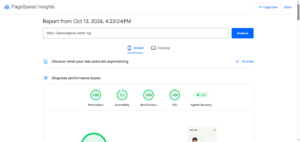
I recommend starting with Google Search Console to review indexing and crawling information, then using PageSpeed Insights to investigate performance. Next, review the website’s internal links, redirects, sitemap, and indexing settings.
The right solution depends on the cause of the problem. For example, a page that is not indexed because it has a noindex directive needs a different fix from a page that Google has crawled but chosen not to index.
Always verify the issue before changing settings, and check the affected page again after making a correction.
Common WordPress Technical SEO Problems
Before making changes, learn to recognise common issues.
Slow website speed: Large images, excessive scripts, inefficient plugins, and poor hosting can delay page loading.
Important pages not indexed: A page might be blocked, marked noindex, unavailable, or not considered suitable for indexing.
Incorrect robots.txt rules: An incorrect rule can prevent search engines from crawling important pages or resources.
Missing sitemap: Search engines may have more difficulty discovering some URLs, particularly on larger websites.
Broken links: Visitors may encounter pages that no longer exist or return errors.
Redirect problems: Incorrect redirects can send visitors to irrelevant destinations or create unnecessary redirect chains.
Duplicate URLs: Categories, tags, tracking parameters, and alternative URL versions can create similar or duplicate pages.
Poor mobile usability: Small text, difficult menus, and horizontal scrolling can frustrate mobile visitors.
Incorrect canonical tags: Search engines may receive confusing signals about which URL represents the preferred version of a page.
The goal is not to fix every warning reported by every tool. It is to identify and prioritise problems that affect important pages, security, usability, and search engine access.
Is Your WordPress Website Facing SEO Problems?
Technical issues can prevent search engines from accessing your pages properly and make it harder for visitors to navigate your website.
From Google indexing issues to Core Web Vitals and incorrect redirects, identifying the root cause is the first step towards a solution.
Let’s find out what is holding your website back.
Request a Technical SEO Audit and discover which issues deserve your attention first.
WordPress Technical SEO Checklist: Step by Step
Use this checklist to audit and improve your WordPress website. Before making major changes, create a backup and test important pages afterward.
Step 1: Check your website’s indexing settings
WordPress has a setting that discourages search engines from indexing a website.
To check it:
- Log in to your WordPress dashboard.
- Go to Settings → Reading.
- Find the search engine visibility option.
- Confirm that the option to discourage search engines is not enabled on your live website if you want it to appear in search results.
This setting can be useful on a development website, but leaving it enabled after launch can create SEO problems.
Next, use Google Search Console’s URL Inspection tool to check important pages. Review whether Google can access the URL and what the tool reports about indexing.
Turning off the WordPress setting does not guarantee that Google will index every page.
Step 2: Enable HTTPS
HTTPS helps secure the connection between your website and its visitors.
Ask your hosting provider about an SSL/TLS certificate if your website does not load securely. Then check that your preferred HTTPS version works and that the HTTP version redirects correctly.
Also check for mixed content, where a secure page attempts to load resources over an insecure HTTP connection.
Avoid changing your WordPress address settings without preparation. Incorrect changes can make your website inaccessible, so back up your site first or request help from your hosting provider.
Step 3: Improve website speed
A faster website can provide a better experience for visitors. Begin by testing important pages with Google PageSpeed Insights.
Then work through these improvements:
- Compress and resize large images.
- Use suitable modern image formats, such as WebP or AVIF.
- Enable appropriate page caching.
- Remove plugins that are unnecessary.
- Use a maintained, efficient WordPress theme.
- Reduce unnecessary third-party scripts.
- Consider a content delivery network (CDN) when appropriate.
- Review hosting performance if the server is slow.
Avoid installing several performance plugins that perform the same tasks. Overlapping features may cause conflicts.
Understand Core Web Vitals
Core Web Vitals measure aspects of the experience people have when using a web page.
The main metrics are:
- Largest Contentful Paint (LCP): Measures how quickly the main content appears. A good target is 2.5 seconds or less.
- Interaction to Next Paint (INP): Measures how responsive a page is to user interactions. A good target is 200 milliseconds or less.
- Cumulative Layout Shift (CLS): Measures unexpected movement of page content. A good target is 0.1 or less.
Google evaluates these metrics at the 75th percentile of visits, with separate assessments for mobile and desktop.
Passing Core Web Vitals does not guarantee high rankings, but improving them can support a smoother user experience.
Step 4: Make your website mobile-friendly
Your website should work well on smartphones, tablets, and desktop computers.
Check that:
- Text is readable without zooming.
- Buttons are easy to tap.
- Images fit the screen.
- Menus work correctly.
- Forms are easy to complete.
- Pop-ups do not block essential content.
- Visitors do not need to scroll horizontally to read the page.
Use a responsive theme and test real pages on mobile devices. Pay special attention to service pages, blog posts, contact forms, and navigation.
Step 5: Create and submit an XML sitemap
An XML sitemap lists important URLs that you want search engines to discover.
Many WordPress websites can generate a sitemap through an SEO plugin, while WordPress also provides native sitemap functionality.
To set up your sitemap:
- Choose your sitemap method.
- Open the sitemap URL in your browser.
- Check that it loads correctly.
- Confirm that it includes the intended URLs.
- Submit it through Google Search Console.
Depending on your setup, the URL may resemble https://example.com/sitemap_index.xml or https://example.com/wp-sitemap.xml.
Use your own domain in place of example.com.
Your sitemap should contain the preferred, canonical URLs you want search engines to discover. Submitting a sitemap helps discovery but does not guarantee indexing or higher rankings.
Step 6: Review robots.txt
The robots.txt file provides instructions to search engine crawlers about which URLs they may request.
Check that your rules do not accidentally block important pages or resources required to understand your website.
One important distinction: robots.txt controls crawling; it is not a reliable way to keep a page out of search results. If a page should not be indexed, an appropriate noindex directive or access restriction may be necessary.
For a typical small WordPress website, simple rules are usually preferable to complicated custom instructions.
Only edit robots.txt when you understand the purpose of each rule.
Step 7: Use clear permalink structures
Permalinks are the URLs assigned to your WordPress pages and posts.
A descriptive URL helps people understand what a page is about. For example:
is easier to understand than a long URL filled with unexplained numbers.
Review your settings under Settings → Permalinks. Use short, readable URLs that reflect the page topic.
However, do not change existing URLs just to make them look slightly better. URL changes can break links and affect search visibility. If a change is necessary, redirect the old URL to the most relevant destination and update internal links.
Step 8: Fix broken links and redirects
Broken links create a frustrating experience and can prevent visitors from reaching useful information.
Use a website crawler or link-checking tool to find URLs that return errors.
For each issue:
- Update internal links to the correct page.
- Redirect a removed page when a genuinely relevant replacement exists.
- Use an appropriate 404 or 410 response when a page has been removed and no suitable replacement exists.
- Avoid redirect chains where possible.
- Do not redirect every missing page to your homepage.
A redirect should lead visitors to the destination they reasonably expect, not an unrelated page chosen simply to avoid an error.
Step 9: Check canonical URLs and duplicate content
A canonical tag indicates which version of a page is preferred when similar or duplicate URLs exist.
WordPress websites can produce similar URLs through archives, tracking parameters, or alternative URL versions.
Many SEO plugins manage canonical tags automatically, but it is worth checking them when you notice unexpected indexing problems.
Confirm that important pages point to the correct canonical URL. Avoid directing every similar page to one URL without considering its purpose. Two pages that answer different questions may deserve separate canonical URLs.
Step 10: Add relevant structured data
Structured data helps search engines interpret information on your pages.
Depending on your website, useful types may include Article, Breadcrumb, Organisation, LocalBusiness, or Product markup.
Use only structured data that accurately describes the page and meets the relevant guidelines. Do not invent ratings, business locations, or claims that are not supported by the visible content.
Your SEO plugin may already generate structured data. Check before installing additional tools to avoid duplicate or conflicting markup.
You can test eligible structured data with Google’s Rich Results Test. Valid markup may make a page eligible for certain search enhancements, but it does not guarantee that those enhancements will appear.
Step 11: Improve internal links and site structure
Internal links connect pages on your own website. They help visitors find related information and help search engines discover pages and understand how they relate.
For a WordPress SEO website, a technical SEO pillar post could link to more focused articles about:
- WordPress speed optimisation.
- How to fix Google indexing issues.
- XML sitemap setup.
- WordPress permalink best practices.
- Core Web Vitals.
- WordPress SEO plugins.
Use descriptive anchor text and link only when the destination is genuinely relevant. Important pages should be accessible through clear navigation or links from other discoverable pages.
Step 12: Maintain your WordPress website
Technical SEO is an ongoing process.
Keep WordPress, themes, and plugins updated. Remove software you no longer need, use strong passwords, maintain reliable backups, and monitor unexpected changes.
After a redesign, migration, or major plugin update, check your important URLs, redirects, forms, and indexing settings. A website can work correctly for visitors while still having technical issues that deserve investigation.
How to Conduct a WordPress Technical SEO Audit
A WordPress technical SEO audit helps you identify problems that may affect crawling, indexing, performance, and usability. Follow this basic process:
- Check indexing: Use Google Search Console to review important URLs and investigate unexpected indexing exclusions.
- Test performance: Run your key pages through PageSpeed Insights and prioritise meaningful performance problems.
- Review your sitemap: Confirm that it loads correctly and contains the intended canonical URLs.
- Check links and redirects: Identify broken internal links, redirect chains, and incorrect destinations.
- Review site structure: Make sure important pages can be reached through useful navigation and internal links.
- Inspect security and maintenance: Confirm that HTTPS works and your WordPress installation is maintained.
- Verify corrections: Recheck the affected pages after implementing changes.
Keep a record of each issue, its priority, the action taken, and the result. This helps you avoid repeating work and makes future audits easier.
Not every warning needs immediate attention. Prioritise issues that block important content, create serious usability problems, or affect site security.
Best Tools for WordPress Technical SEO
You can start with a small selection of tools rather than paying for several overlapping subscriptions.
| Tool | Main purpose |
|---|---|
| Google Search Console | Monitor indexing, search performance, sitemap processing, and reported issues. |
| Google PageSpeed Insights | Test page performance and review available Core Web Vitals data. |
| Google Rich Results Test | Check structured data for supported rich-result eligibility. |
| Screaming Frog SEO Spider | Crawl URLs and identify broken links, redirects, and metadata issues. |
| Rank Math or Yoast SEO | Manage common WordPress SEO settings and features such as metadata and sitemaps. |
For many small websites, Google Search Console, PageSpeed Insights, and one well-maintained SEO plugin are enough to begin.
Use tools to investigate problems, not simply to chase a perfect score. Prioritise issues based on their real effect on users and important pages.
Common Technical SEO Mistakes to Avoid
Installing multiple SEO plugins: Several plugins may generate duplicate sitemaps, canonical tags, or structured data. Choose one main plugin for overlapping functions.
Changing URLs without redirects: A URL change can break links. Plan redirects and update internal links before and after the change.
Blocking important pages accidentally: Incorrect robots.txt rules or indexing settings may prevent search engines from accessing content.
Treating every warning as critical: Some tool recommendations are minor. Focus first on issues that prevent access, harm usability, create security risks, or affect important pages.
Ignoring content quality: Technical SEO cannot compensate for content that fails to answer the reader’s question. Technical health and helpful content should work together.
Making changes without testing: Check important pages after updates. Confirm that they load, links work, and search engines can access the intended content.
Frequently Asked Questions
Is WordPress good for technical SEO?
Yes. WordPress provides a flexible foundation for technical SEO, supported by themes, plugins, and hosting services. Results depend on how the website is configured and maintained.
Which WordPress SEO plugin is best?
Rank Math and Yoast SEO are popular choices. Compare their features, ease of use, compatibility, and pricing before choosing one. You generally do not need both managing the same settings.
Does technical SEO guarantee higher Google rankings?
No. Technical SEO helps search engines access and understand your website, but rankings depend on multiple factors, including relevance, content quality, competition, and search intent.
How often should I audit technical SEO?
Review Search Console and performance data regularly. Perform a broader audit every few months, and check again after a redesign, migration, major plugin change, or URL restructuring. Larger websites may need more frequent checks.
Can I do technical SEO without coding?
Yes. Many routine tasks can be handled through WordPress settings, hosting tools, and SEO plugins. Complex server, rendering, or custom-code problems may require a developer or technical SEO specialist.
Why are my WordPress pages not indexed by Google?
Possible causes include indexing restrictions, crawling problems, server errors, duplicate URLs, weak internal linking, or Google’s decision not to index a particular page. Use Search Console’s URL Inspection and Page Indexing reports to investigate the specific issue.
Is an XML sitemap enough to get indexed?
No. A sitemap helps search engines discover URLs, but it does not guarantee that they will be crawled or indexed. Pages must also be accessible and meet Google’s indexing requirements.
Final Thoughts
Technical SEO for WordPress is about making your website accessible, secure, fast, and easy for search engines and visitors to understand.
Start with the essentials: check indexing settings, enable HTTPS, improve page performance, submit a sitemap, review robots.txt, and fix broken links. Then examine canonical URLs, structured data, internal links, and ongoing maintenance.
Use Google Search Console and PageSpeed Insights to guide your work, and prioritise issues according to their impact rather than trying to fix every warning at once.
If your website is not appearing in search results or you are unsure how to resolve technical issues, a structured audit can help identify the cause and establish a practical plan.
Need Help With Technical SEO for Your WordPress Website?
If your website has indexing problems, slow-loading pages, broken redirects, or other technical SEO issues, James Agbai SEO can help you identify the underlying problems and prioritise practical solutions.
Want to understand what is affecting your website’s SEO?
Request a Technical SEO Audit to discuss your website and the improvements worth prioritising.
Author Profile

-
James Agbai is an SEO Specialist and Content Strategist with over five years of experience helping businesses, bloggers, startups, and service providers improve their online visibility through ethical, data-driven SEO.
He specializes in technical SEO, content strategy, keyword research, and on-page optimization, with a focus on building sustainable organic growth rather than relying on short-term tactics.
Latest entries
 CONTENT SEOOctober 22, 2026Why Your Blog Posts Are Not Ranking on Google: 15 Reasons and How to Fix Them
 CONTENT SEOOctober 22, 2026How to Build an SEO Topic Cluster (Step-by-Step Guide)
 CONTENT SEOOctober 17, 2026SEO Content Strategy for Nigerian Businesses: A Complete Guide to Getting Found on Google
 TECHNICAL SEOOctober 17, 2026How to Fix 404 Errors in WordPress: A Complete Step-by-Step Guide